

What you’ll build
- An AG2 ConversableAgent with callable tools
- The same agent connected to CometChat (Agent ID + Deployment URL)
- A customized chat experience using UI Kit Builder
- An export to React UI Kit code or Chat Widget for integration
Prerequisites
- A CometChat account and an app: Create App
- Python 3.10+ and
pip - Environment variables:
OPENAI_API_KEY(required for AG2 LLM calls)WEATHER_API_KEY(optional — enables real weather data in the sample tool)
- Git (to clone the example project)
Step 1 - Create your CometChat app
Create or open an app
Sign in at app.cometchat.com. Create a new app or open an existing one.
Step 2 - Connect your AG2 Agent
Navigate to AI Agent → Get Started and then AI Agents → Add Agent.Basic details
Provide:
- Name and optional Icon
- (Optional) Greeting and Introductory Message
- (Optional) Suggested messages such as “What’s the weather in Austin?”
AG2 configuration
Paste the following from your deployment:
- Agent ID — for the sample project, use
weather. - Deployment URL — the HTTPS endpoint that proxies to
/agenton your server.
Tip: Keep your Deployment URL stable (e.g., https://your-domain.tld/agent). Update server logic without changing the URL to avoid reconfiguration.
Step 3 - Define Frontend Actions (Optional)
Add an action
Go to AI Agent → Actions and click Add to create a frontend action your agent can call (e.g., “Open Product,” “Start Demo,” “Book Slot”).
Define fields
Include:
- Display Name — Shown to users (e.g., “Open Product Page”).
- Execution Text — How the agent describes running it.
- Name — A unique, code-friendly key (e.g.,
open_product). - Description — What the tool does and when to use it.
- Parameters — JSON Schema describing inputs (the agent will fill these).
Step 4 - Customize in UI Kit Builder
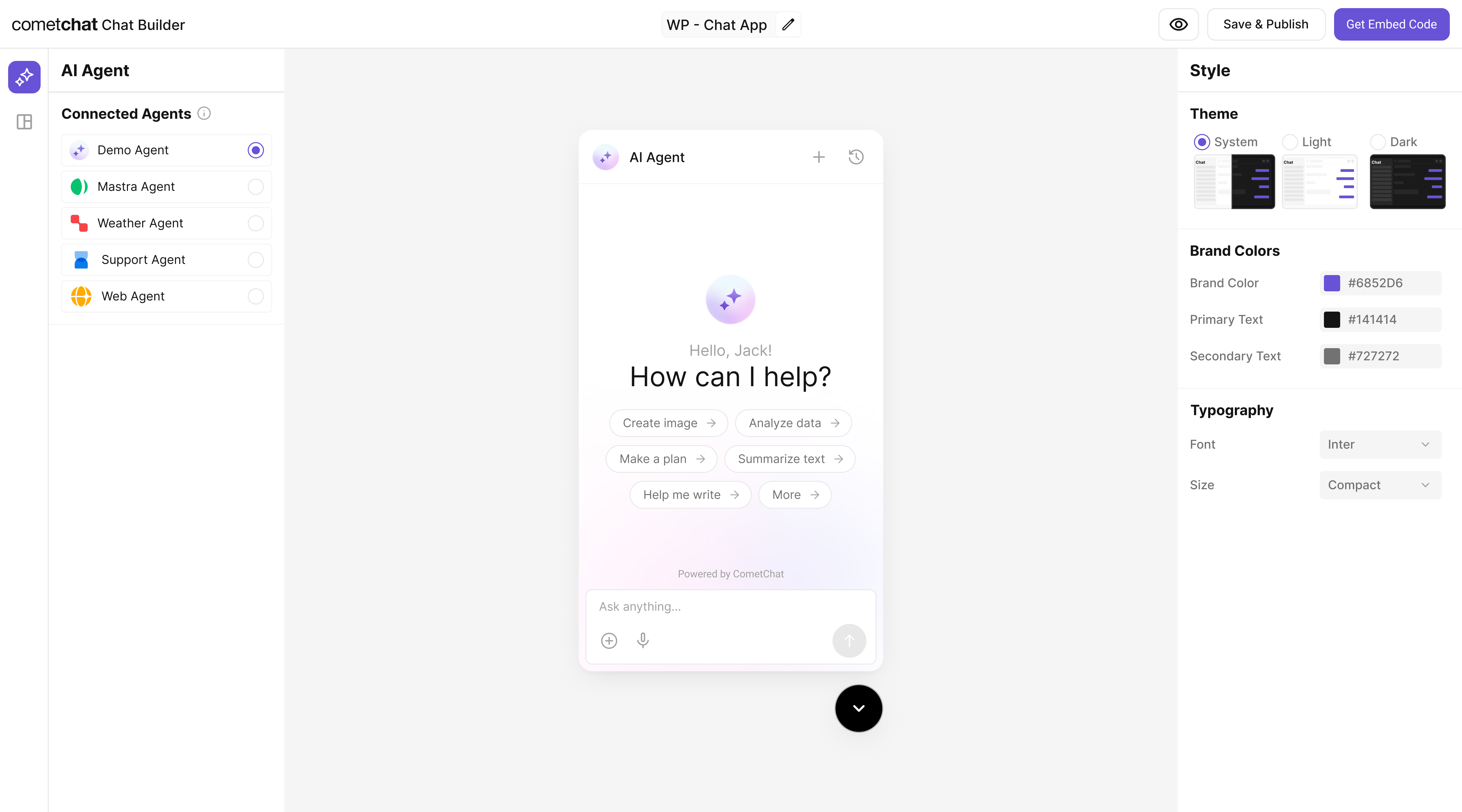
Step 5 - Export & Integrate
Choose how you’ll ship the experience (Widget or React UI Kit export).The AG2 agent from Step 2 is included automatically in exported variants—no extra code needed for basic conversations.
Decide delivery mode
Pick Chat Widget (fastest) or export React UI Kit for code-level customization.
Step 6 - Run Your AG2 Agent (Reference)
Clone & install dependencies
Clone & install dependencies
git clone https://github.com/cometchat/ai-agent-ag2-examples.gitcd ai-agent-ag2-examples/ag2-cometchat-agentpython -m venv .venv && source .venv/bin/activate(or.venv\Scripts\activateon Windows)pip install -r requirements.txt
Configure environment
Configure environment
Create a .env file:
Without WEATHER_API_KEY, the tool still returns stubbed error messages that the agent can surface gracefully.
Inspect the agent
Inspect the agent
The agent streams Server-Sent Events (SSE) with tool call telemetry and message chunks so CometChat can render partial replies in real time.
Run & expose the API
Run & expose the API
uvicorn server:app —reload —host 0.0.0.0 —port 8000- Verify health:
curl http://localhost:8000/health - Trigger a message (SSE response):
Use a tunneling tool (ngrok, Cloudflare Tunnel, etc.) to create the public Deployment URL CometChat needs.
Production checklist
Production checklist
- Configure logging, rate limiting, and auth (API key/JWT) on the
/agentroute. - Store secrets in server-side env vars only; never expose them in client code.
- Namespace tool calls and sanitize user input before hitting external APIs.
- Scale the FastAPI app behind your preferred hosting (Render, Fly.io, Vercel functions, etc.).
Test your setup
Troubleshooting
Agent not responding
Agent not responding
- Verify your Deployment URL is publicly reachable (no VPN/firewall).
- Check server logs for 4xx/5xx errors or missing API keys.
Tool call not executed
Tool call not executed
- Confirm the Action’s Name matches the tool name emitted by AG2.
- Ensure your agent registers tools via
register_for_llmand proxies execution.
Auth issues in exports
Auth issues in exports
- Use
authKeyonly for development. For production, implement a secure token flow for user login.